The CyberloopEDR application consists of the main window and top, bottom, and side panels. The top panel shows the current date and time, RIG number, and well number.
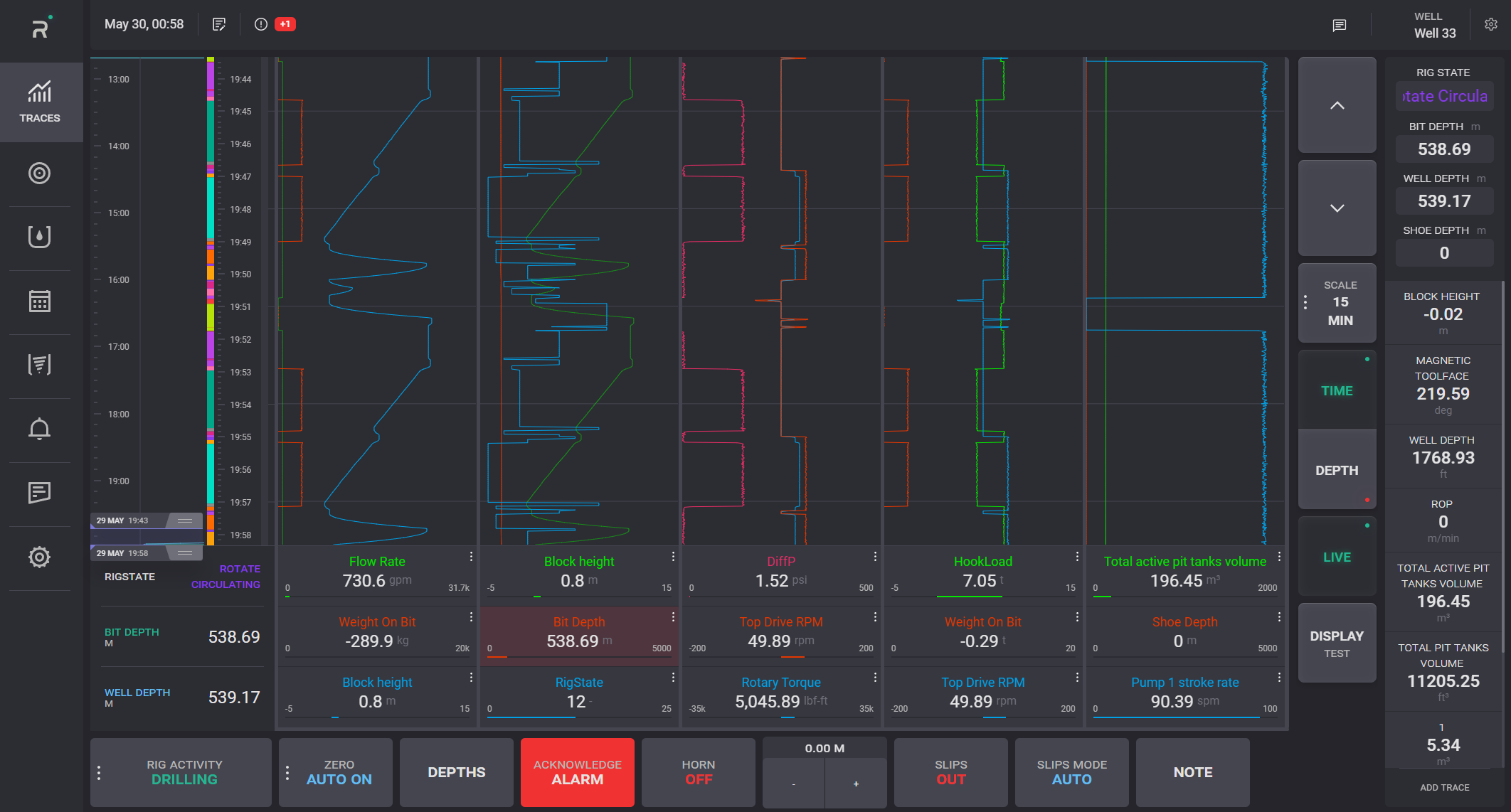
On the left side panel, a user can select the functionality to present in the main window: Drilling, Driller Screen, PVT, DDR, Tally Sheet, Alarm, Notes, Configuration and DFDBG.
Main traces are presented on the right panel. The RIG Activity, Bit Depth and Hole Depth parameters always displayed on the panel. Other parameters to track can be added by clicking Add trace button. In the opened modal window select parameters to display and click on Apply button.
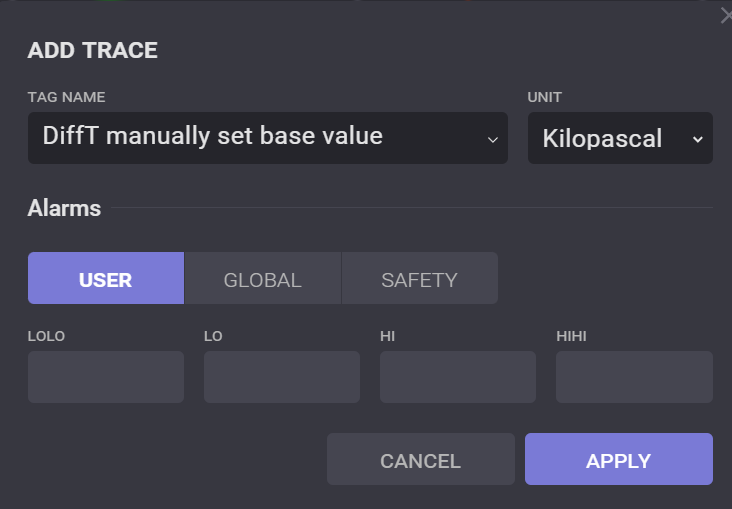
The selected parameter will appear on the right panel. It can be deleted from the panel by clicking on the X-button in the parameter window.
On the bottom panel placed the set of buttons for fast change the parameters or turning off/on the functionality.
Depth
Click on Depth option on the bottom panel opens modal window where Bit, Hole, or Shoe depth can be changed. Enter value to the field of the parameter to be changed and click apply to use new value. New values will be displayed on the right panel.
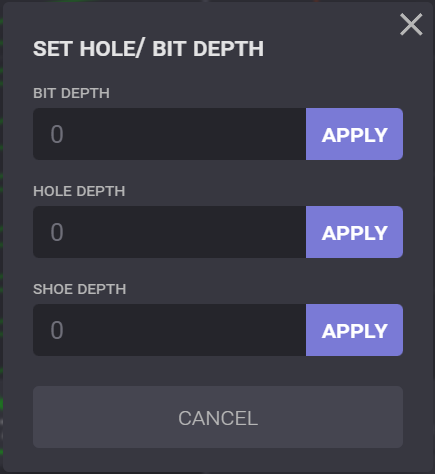
Note: the Hole depth cannot be smaller than Bit depth. If entered values violate this condition the field will be highlighted with red.
Rig Activity
Click on current Rig Activity on bottom panel expands the panel to select Rig Activity manually. Click on one of the options switched the activity.
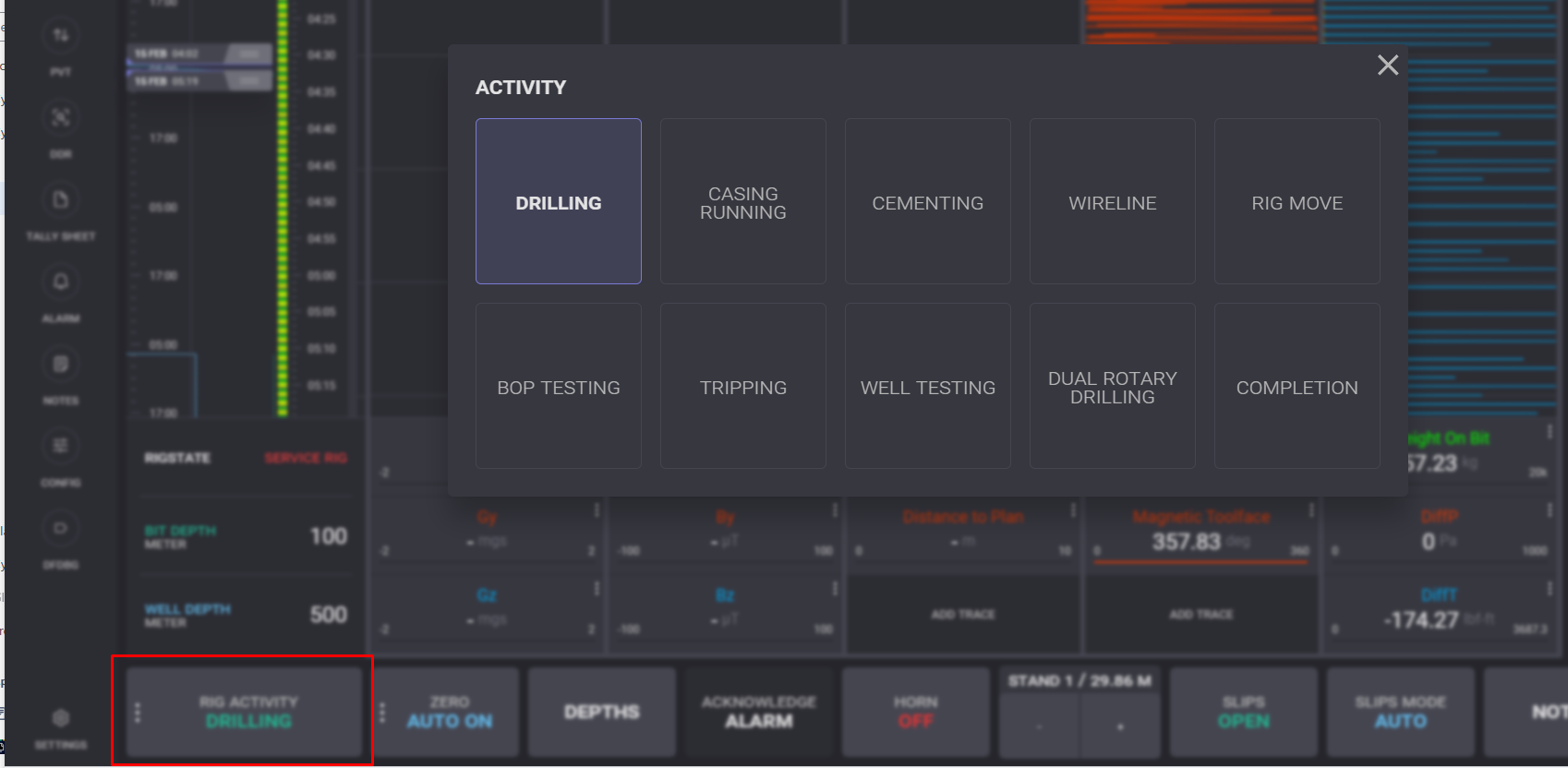
There are ten activities available:
Drilling – normal Drilling operation. Bit depth and hole depth tied to block height and slips conditions;
Casing Running – Bit depth does not change when Casing running mode is selected. The shoes depth is progressed as the casing is run in hole. Activity avoids the issue of casing and liner runs pushing the hole depth accidentally;
Cementing – used when pumping and waiting on cement. Activity does not have any additional functions other than changing the rig state to show “Cementing”;
Wireline – used when running wireline. Activity does not have any additional functions other than changing the rig state to show “wireline”;
Rig Move – used when Rig moving. It does not have any additional functions other than changing the rig state to show “Rig Move”;
BOP Testing – used when BOP testing. This activity does not have any additional functions other than changing the rig state to show “BOP Testing”;
Tripping - used when the process of removing and/or replacing the pipe from the well is needed;
Well Testing - the well is flowed through a temporary completion to a test separator;
Dual Rotary Drilling - used for changing well depth, bit depth and shoe depth – specific for mining application;
Completion - the process of completing operations on an oil and gas well after a drilling rig has finished its work.
Note: Selecting 'Casing Drilling' will track 'Shoe Depth' instead of 'Bit Depth'
Zero
Cyberloop EDR offers Automated taring for Weight on Bit, Differential Pressure and Differential Torque.
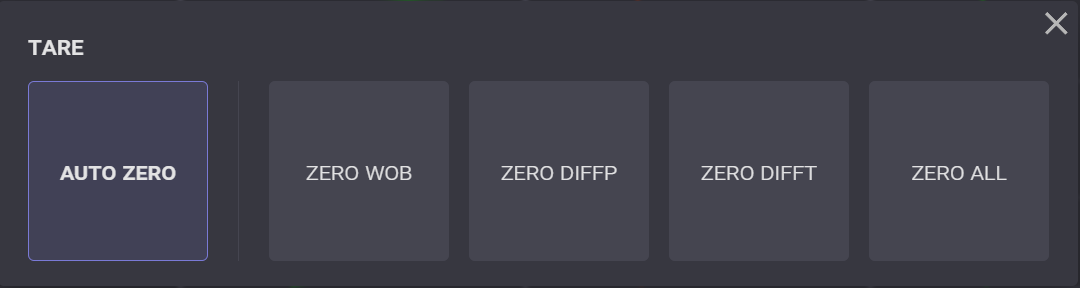
Auto Zero – uses the rig state parameters to auto tare the WOB, Diff P and Diff T.
Zero WOB - Press to manually zero only the WOB;
Zero DiffP - Press to manually zero only the Differential Pressure ;
Zero DiffT - Press to manually zero only the Differential Torque ;
Zero All - Press to manually zero Weight on Bit, Differential Pressure and Differential Torque.
Acknowledge Alarms
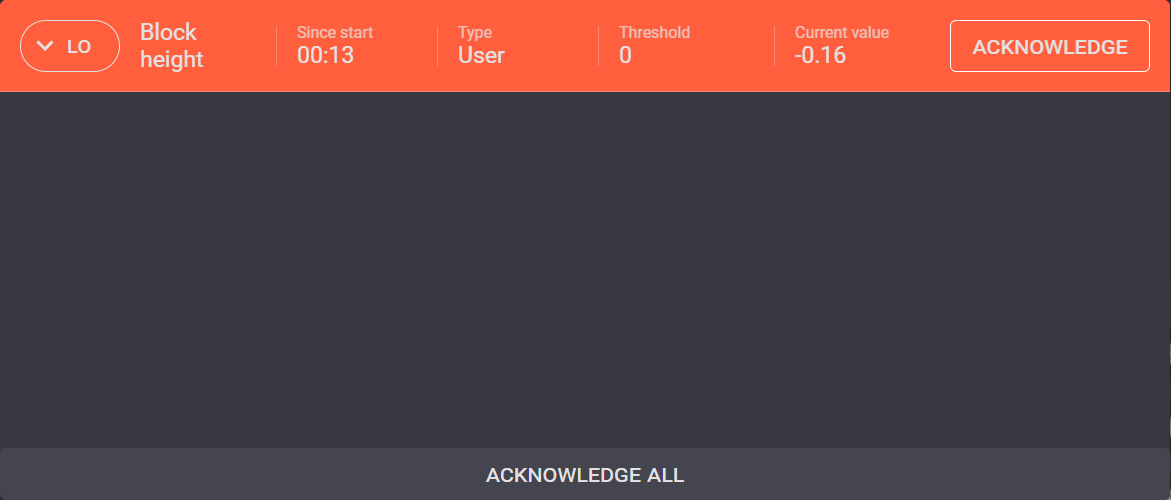
Click on the Acknowledge Alarms expands the dialog with the list of currently active alarms that require consideration by the user.
Click on the Acknowledge button will mark it as viewed and remove it from the list. If there are several triggered alarms, it can be considered by Acknowledge all option. In this case all alarms will be acknowledged in a bunch.
Other options:
-
set Horn Off/On;
-
add or remove Joint - by clicking on “+” the next joint in the list will be marked as a pipe moved down to the borehole in the tally sheet;
-
change Slip Status (Manual or Auto);
Notes
Click on the Notes option on the bottom panel opens adding notes dialog.
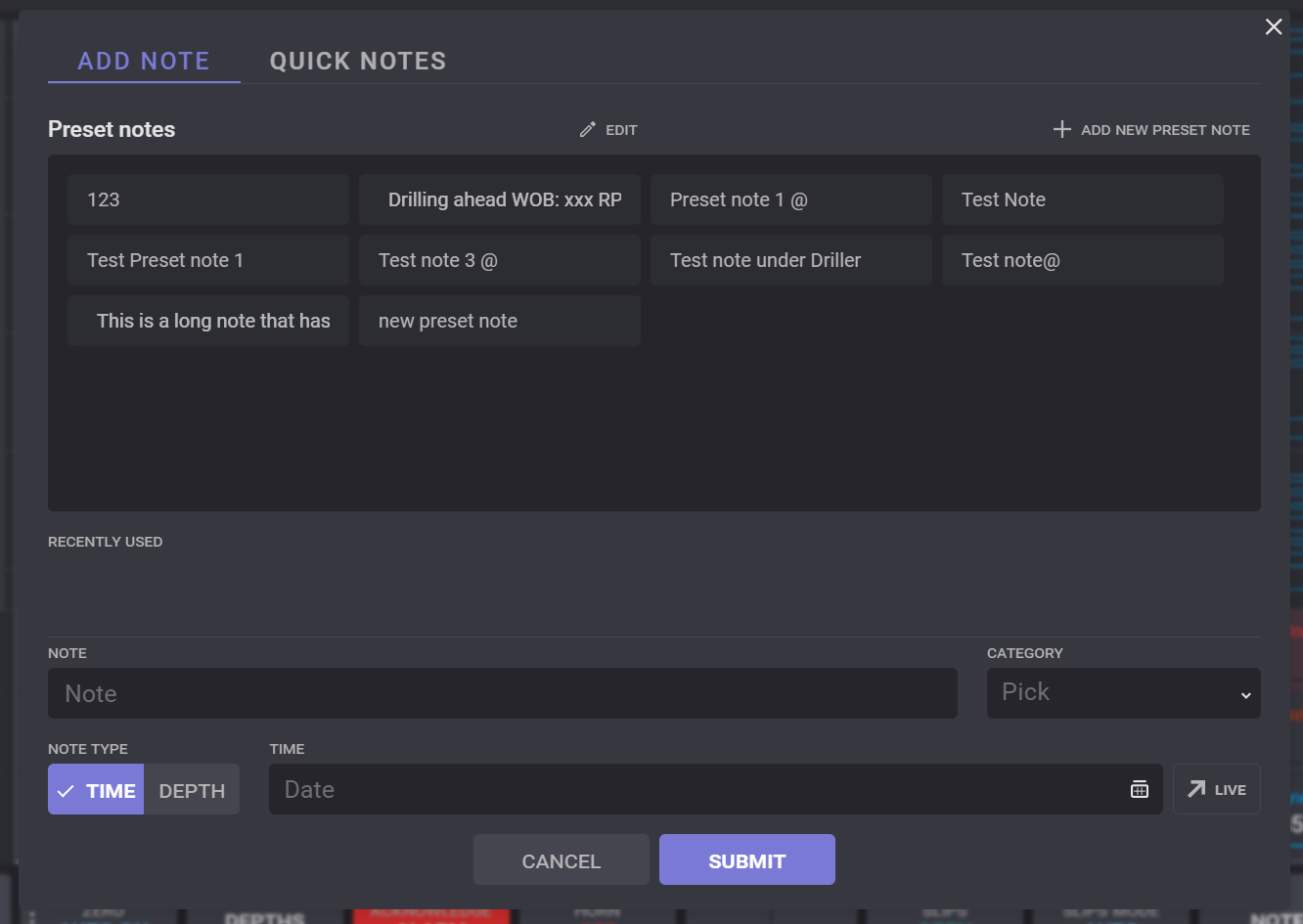
There are two types of notes that can be added: Simple note and Quick note.
Notes can be bind to Time or to Depth. Note type can be selected by toggle. 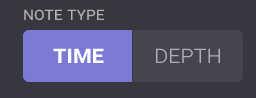
To add note enter the note text to the NOTE field, select category from the drop-down list, define date and time for time note, or section and well depth for depth note and click submit. The note will be created and added to the Notes list and displayed on the charts on drilling tab.
Preset notes
The notes can be added to the preset notes and be reused. Click on preset note adds its text to the Note field. To create preset note click on Add New Preset Note. In the opened Add Note dialog enter note text and click on Add button.
To delete preset note click on Edit button. In edit mode bucket icon appear next to preset notes. Click on delete icon removes the preset note from the list.
Quick notes
Quick notes can be created, viewed and send on the Quick notes tab. The list of the notes can be filtered by its categories by clicking on the category in the Filter Categories. Click on the Show All clears all applied filters.
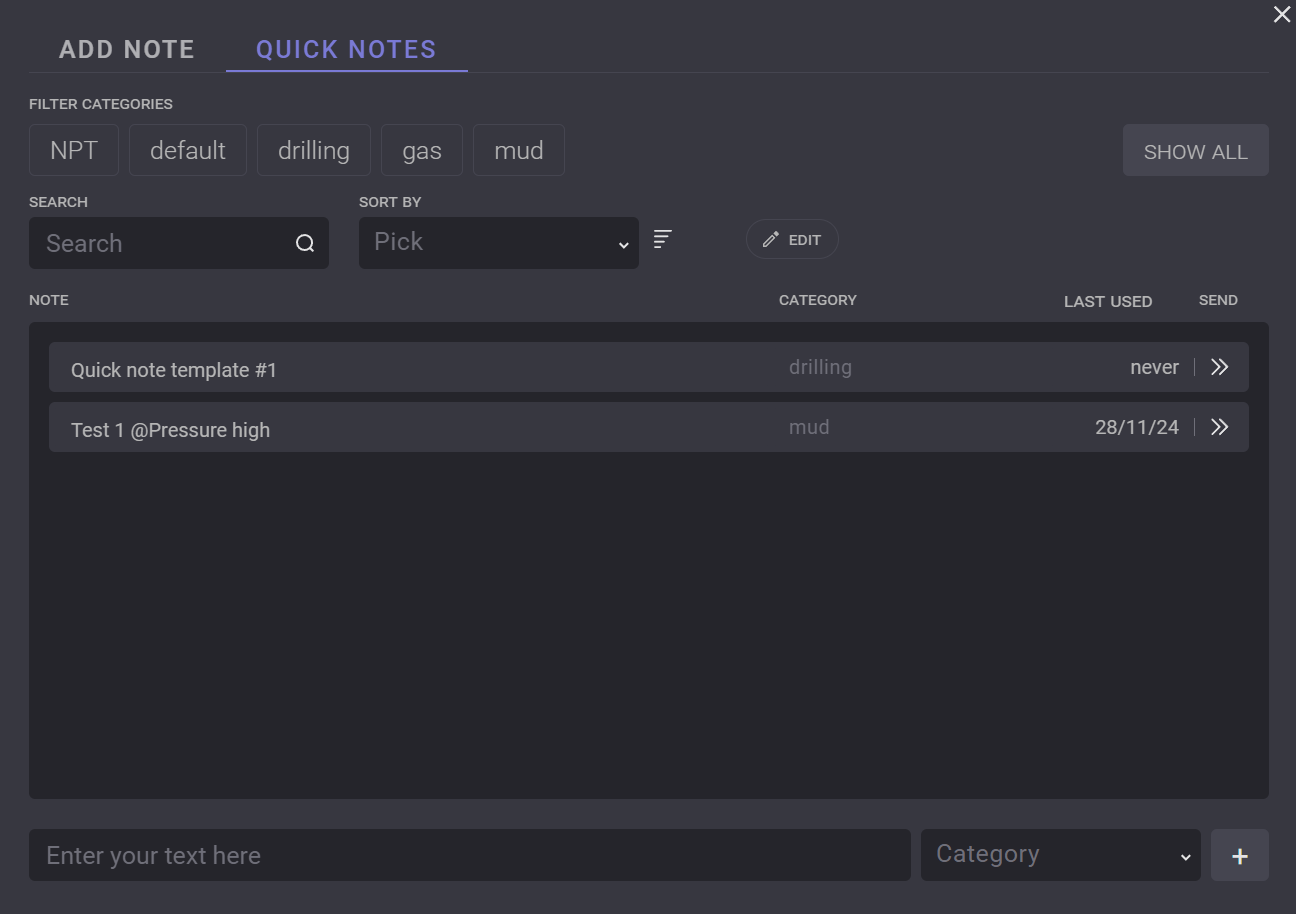
To create new quick note enter text to the bottom field of the dialog, select category and click on “+“ button. The note will be added to the list but won’t be sent. To put a note, click on Send icon in the table.
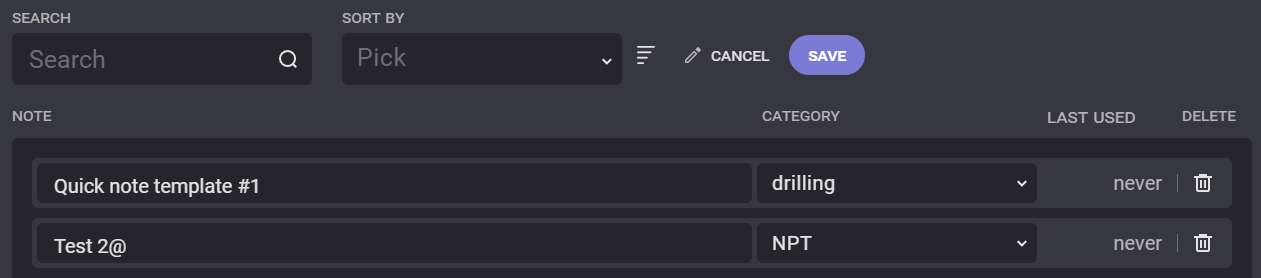
The note can be changed or deleted by clicking on Edit button.
Settings
Click on the Settings expanded dialog, allowing you to set up the EDR environment: select the theme and define the Units. To change the theme on the EDR environment from dark to light and conversely, toggle the switch to the corresponding position.
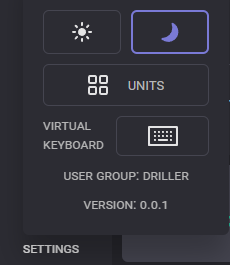
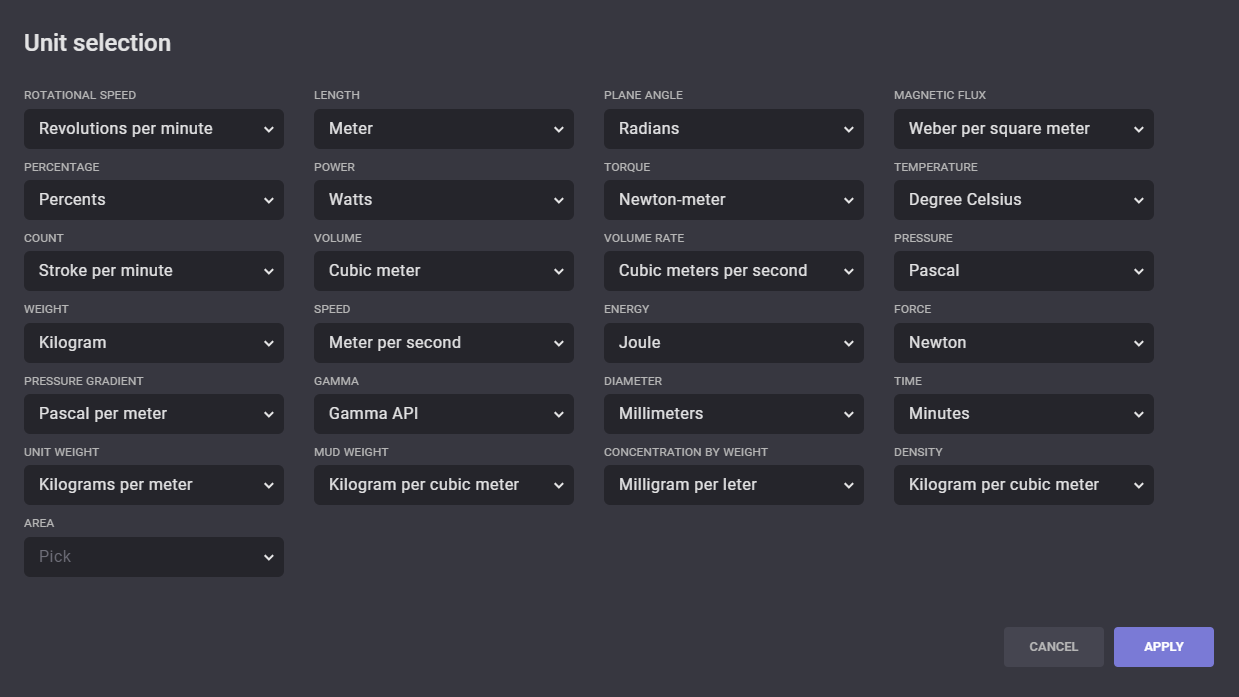
Click on the units icon expands the dialog with Unit Selection. To change the measurement units for any parameter, click on it and select it from the drop-down list. Click on the Apply button to save changes.
User Permissions
There are three types of users with different rights available in the EDR application: driller, toolpusher, and client. Each type of user has a separate set of workspaces, which means that all workspaces created by driller users are not available for toolpushers or clients and vice versa.
|
|
Driller |
Toolpusher |
Client |
|---|---|---|---|
|
Common workspace |
|||
|
Add traces on the right panel |

|
|
|
|
Delete traces on the right panel |
|
|
|
|
Set hole/Bit depth |
|

|
|
|
Zero bit Wt |
|
|
|
|
Add Joints |
|
|
|
|
Drilling |
|||
|
View personal workspaces |
|
|
|
|
Create and edit personal workspace |
|
|
|
|
View other users workspaces |
|
|
|
|
Edit other users workspace |
|
|
|
|
PVT |
|||
|
View parameters |
|
|
|
|
Set alarms |
|
|
|
|
Set values to Zero |
|
|
|
|
Setup the PITS |
|
|
|
|
Daily Drilling reports |
|||
|
View reports |
|
|
|
|
Create/Edit/Delete/Release reports |
|
|
|
|
Tally Sheet |
|||
|
View tally sheet |
|
|
|
|
Add/Edit/Delete tab with tally sheet |
|
|
|
|
Add/Edit/Duplicate/Delet the Joint |
|
|
|
|
Mark the joint as moved down |
|
|
|
|
Alarms |
|||
|
View active alarms and alarm logs |
|
|
|
|
Notes |
|||
|
Add quick notes |
|
|
|
|
Add notes |
|
|
|
|
Edit notes |
|
|
|
|
Configuration |
|||
|
Release/Edit/Start new section |
|
|
|
|
Release/Suspend/Start new Well |
|
|
|
|
Setup charts |
|
|
|
|
Export CSV/LAS file |
|
|
|
Chat
Chat can be used for fast message exchange. Click on the chat icon on the top panel expands the chat dialog. It can be opened from any tab.
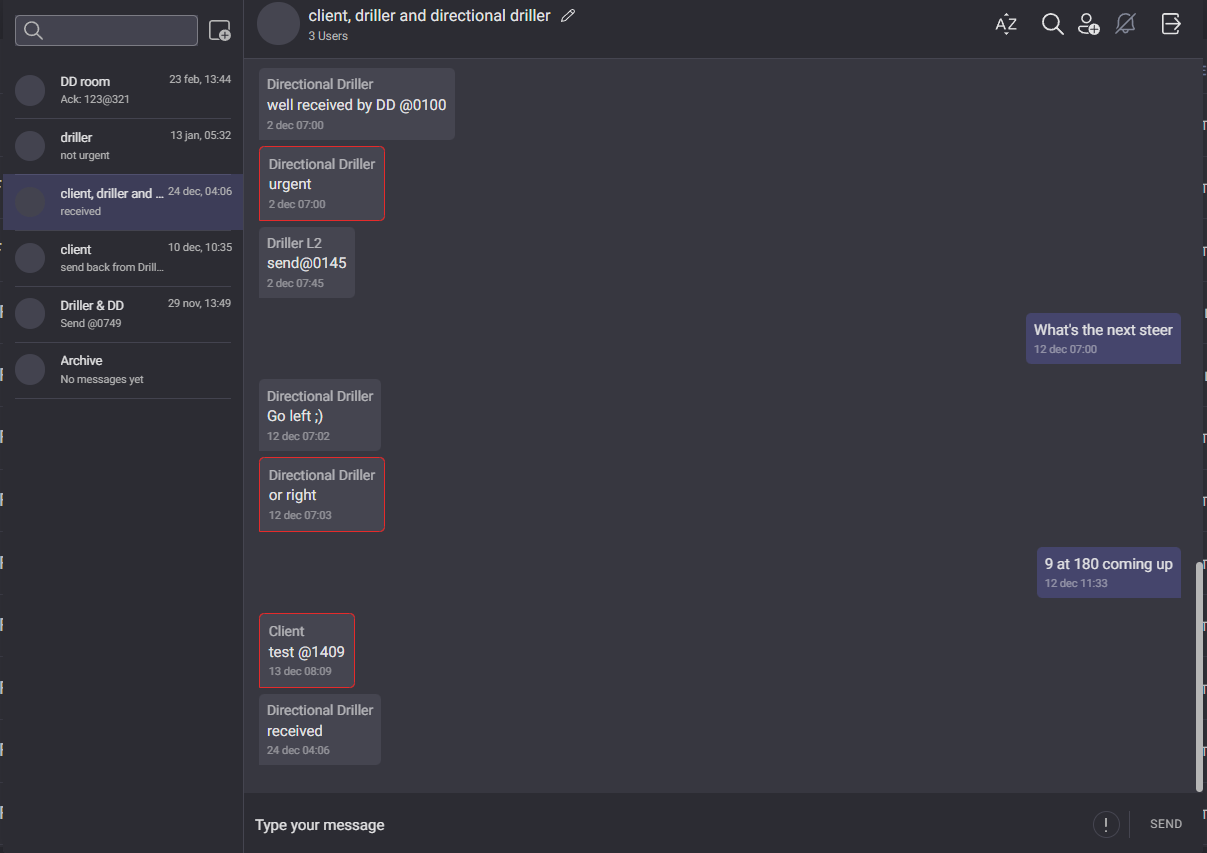
List of the existing chats placed on the left side of the dialog. Necessary dialog can be found in the search field. To start new chat with one or several users, click on the new chat icon 
In the opened dialog, tick the checkboxes next to users that will be included to the chat and enter the name of the chat room.
On the top panel placed options of the selected dialog. The chatThe font room name can be edited by clicking on the pencil icon next to its name. In the opened dialog, a new name can be entered.
Font size of the dialogs can be adjusted by clicking on the AZ button. The size of the text got changed by “+“ and “-“ controls. To leave the edit font size mode click on the AZ button.
Other users can be invited to the chat room by clicking on the “+“ button. In the opened dialog select users to invite and click on the Start button.
Chat notifications get turned on/off by clicking on the Bell button.
The chat got closed by clicking somewhere outside the dialog.