

The PVT dashboard contains information on different parameters such as pumps, pit volumes, weight indicators and, flow in and out from the well. The user can also specify alarm set points within the PVT module.
Drilling
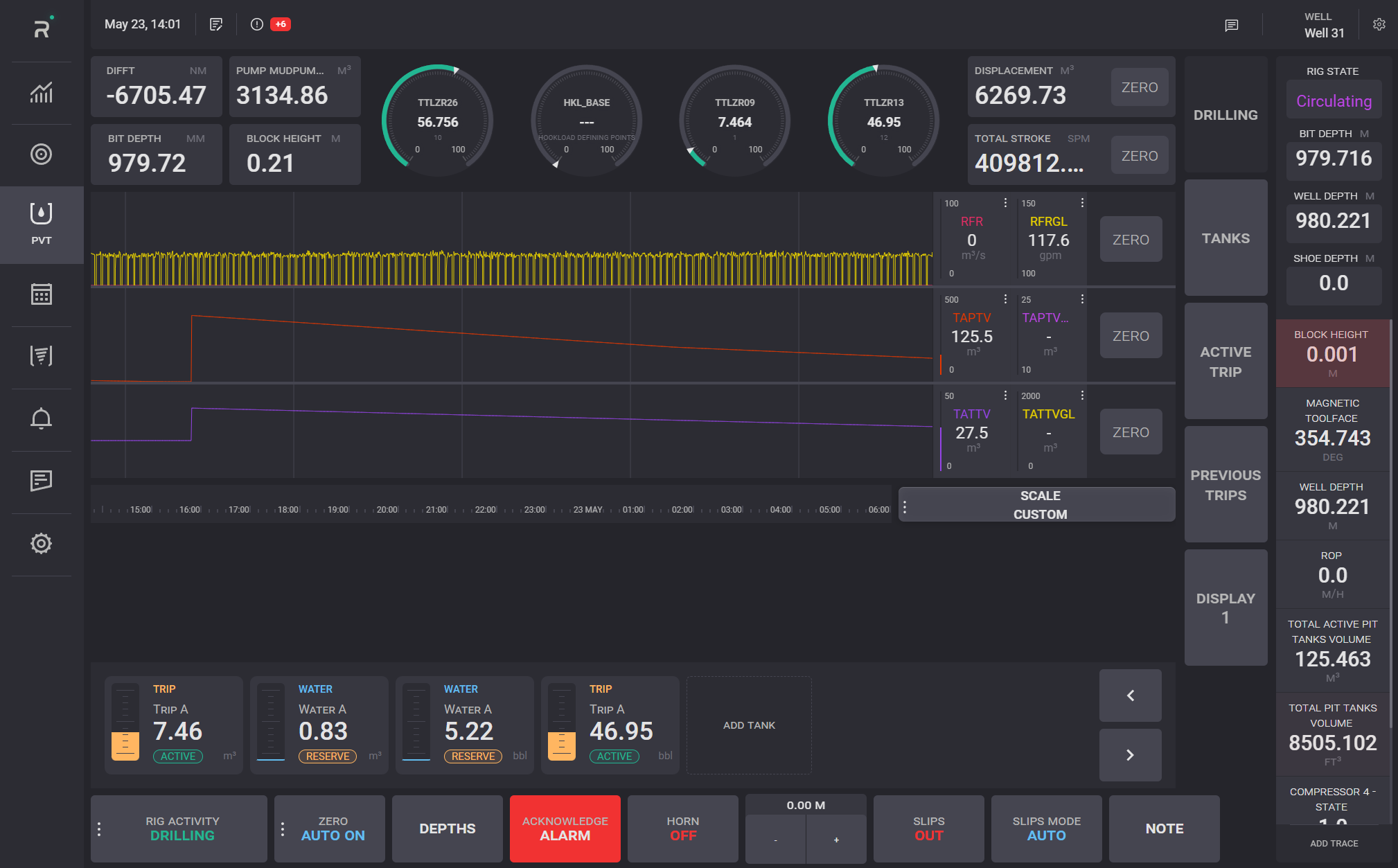
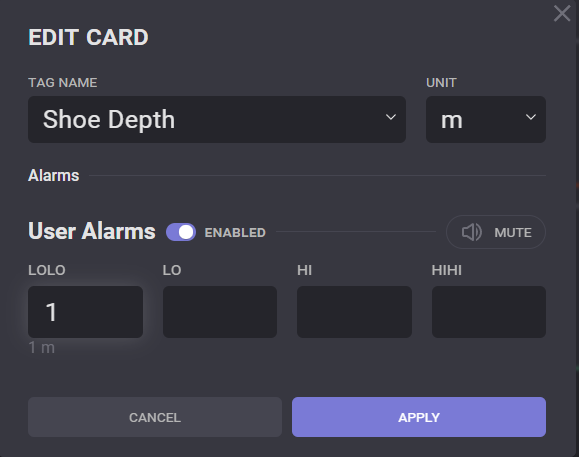
Gauges and cards on the Drilling screen can be set up by clicking on them. In the opened modal window select the tag and units of the selected tag to be displayed on the card. For the cards alarm can be turned on/off and values to trigger alarms can be defined.
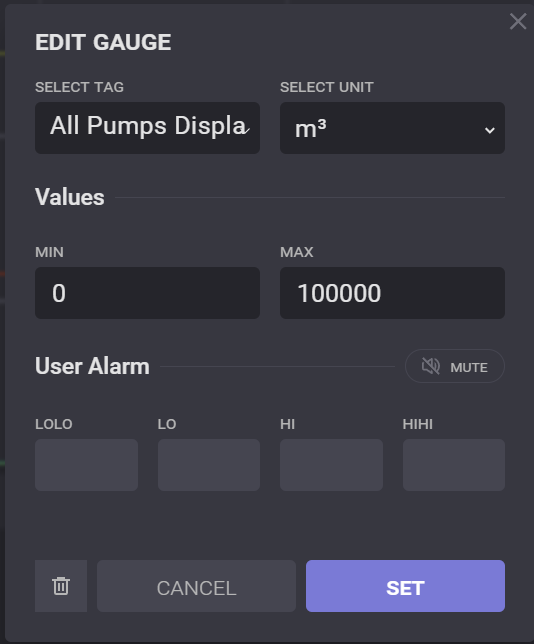
For gauges the range of the scale can be defined or changed in the max and min value fields. Click on the bin button clears gauge settings.
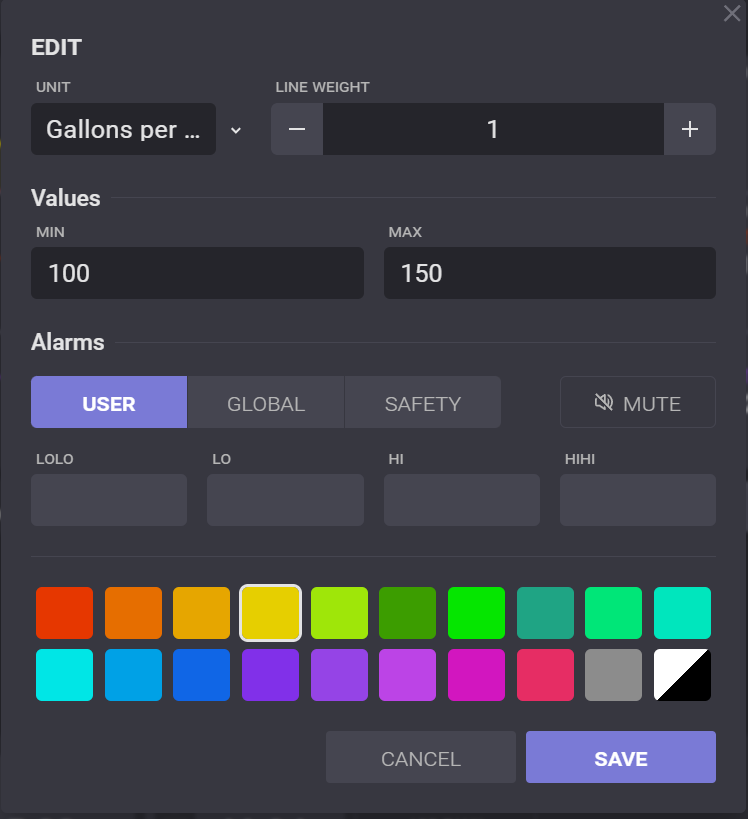
The graph settings can be viewed and edited by clicking on the chart legend. To change units of the chart, click on the field and select necessary units from the list. Line weight can be changed by “-/+“ controls. Max and min values define the range to be displayed on the chart.
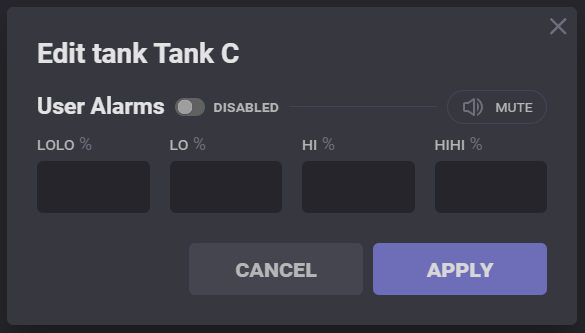
If an alarm is set up for the tag, threshold values will be displayed in the alarms section of the Edit dialog. Alarm can be muted/unmuted in the Edit dialog.
Displacement and Total stroke values can be set to zero by clicking the Zero button.
Tanks
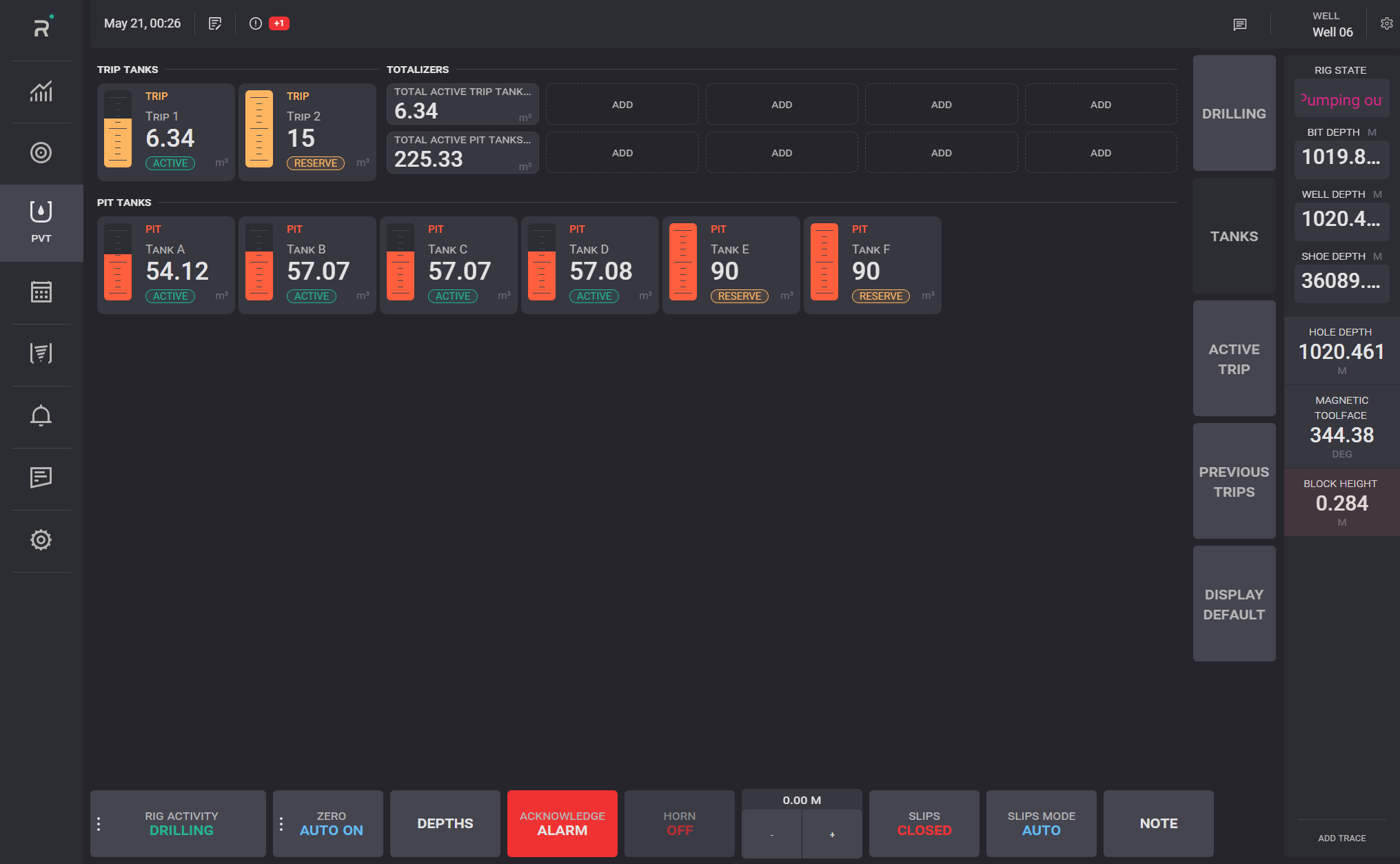
All existing tanks created in the Configuration are displayed on the Tanks tab.
Click on the Tank card opens the Edit tank dialog, where Alarm settings of the tank can be changed.
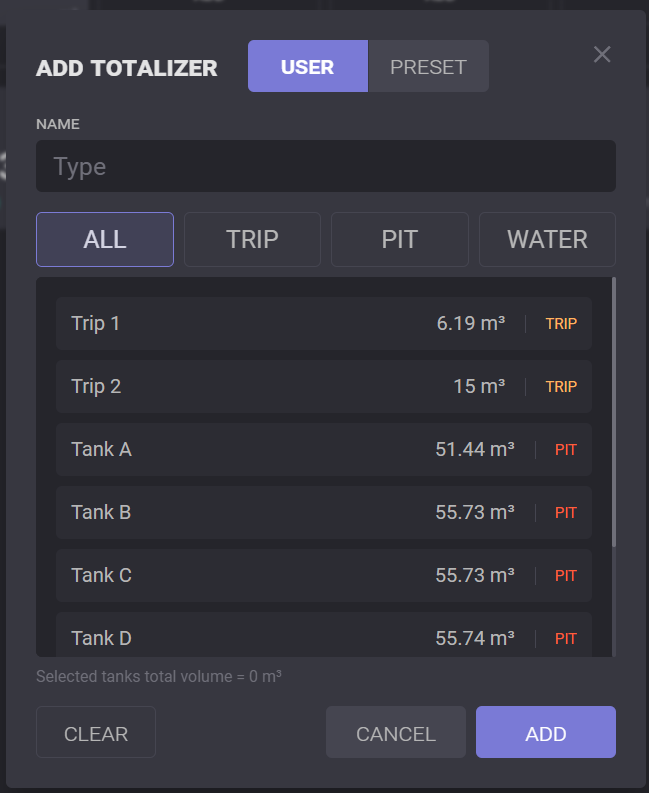
PIT volume totalizer
The pit volume totalizer window shows total pit volume and total trip tank volume values. To Add a totalizer, click on Add in the empty slot. In the opened dialog, select tanks to add to the totalizer and click on the Add button.
Active Trip
On the Active Trip tab of the PVT section, a trip record report can be started, or the last saved version of the active trip report is presented.
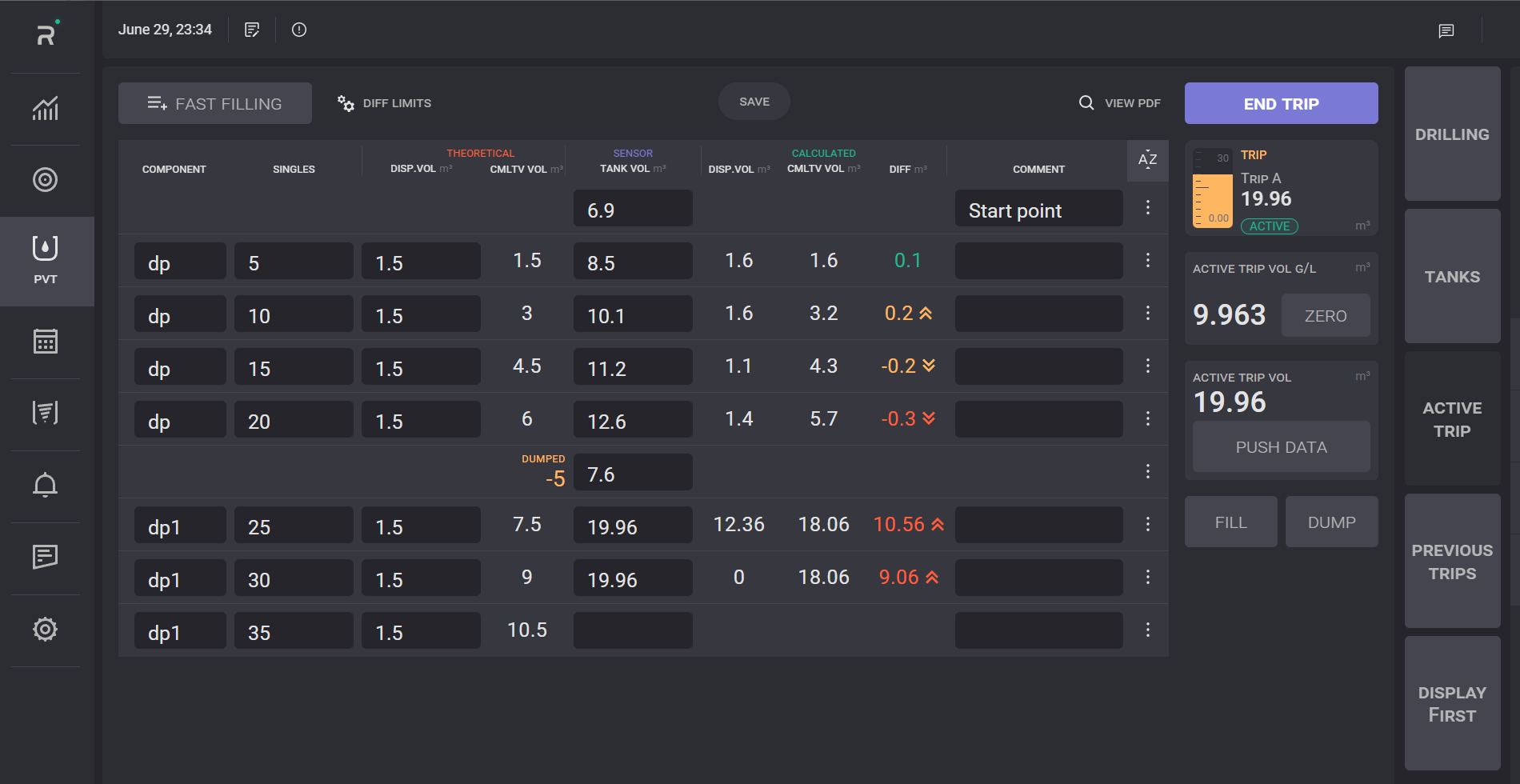
If there are no active records, the Start Trip Record button will be available on the page.
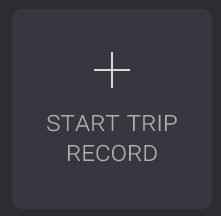
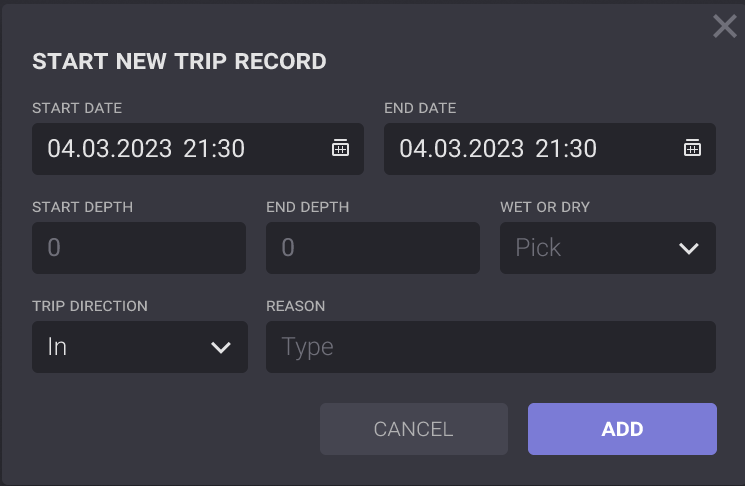
Click on it opens the Start New Trip Record dialog. To start the trip record, define the start and end date and time, start and end depth, condition, and direction, and click on Add button in the dialog.
Previous Trip
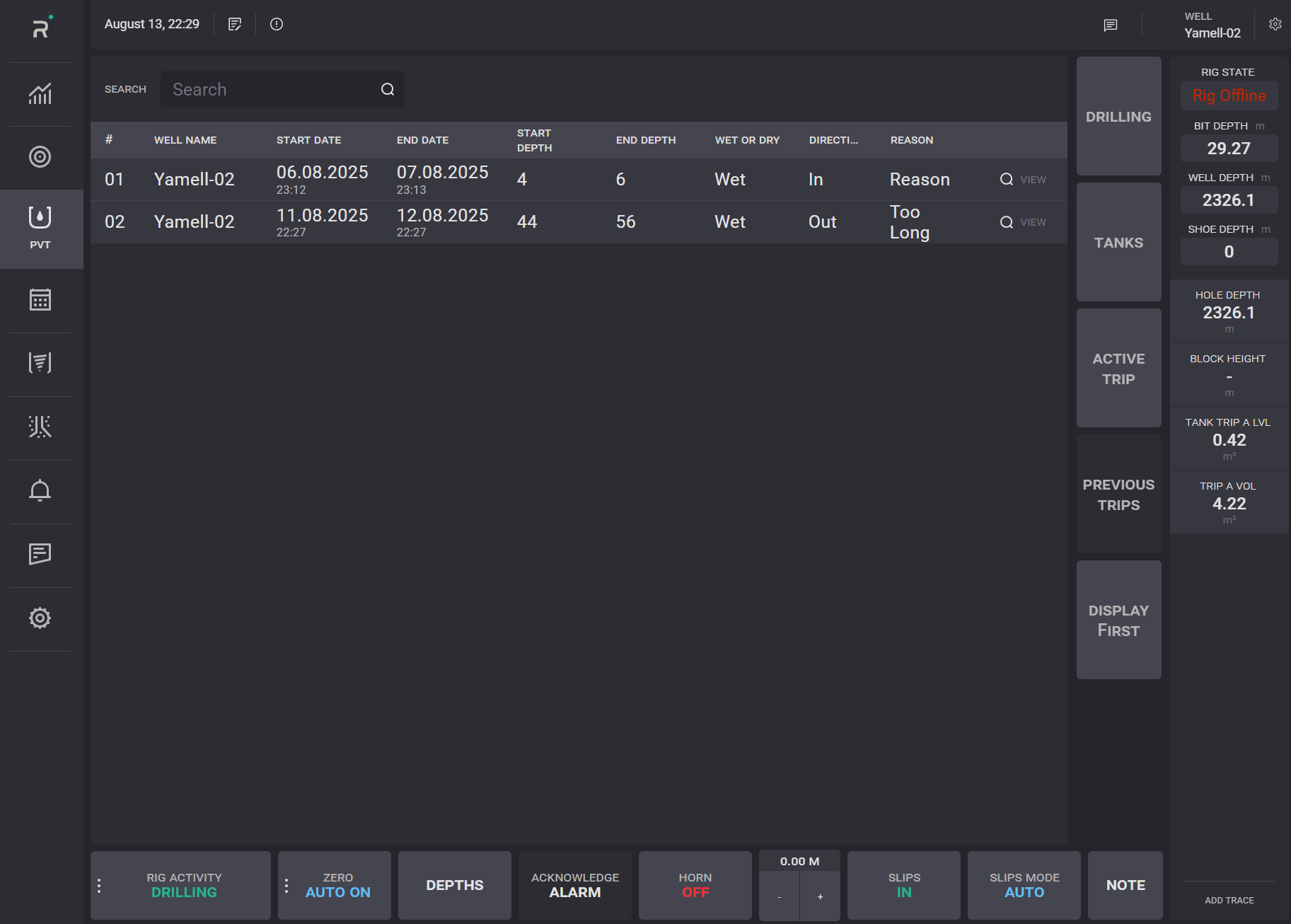
The Previous Trip tab displays a list of already ended trips. The report from the list can be exported to the .pdf or .xlxs file or reopened.
To export the trip file, click on the View button next to it. A preview of the file will be opened. To download the trip file click on the Save pdf/Save xlxs button. The file will be downloaded on the local machine.
Click on the Reopen Report button will open selected trip report on Active trips tab and set it as active.
To report make sure that there is no active trip reports