

You must have Drillers Rights to release and add a new well section.
-
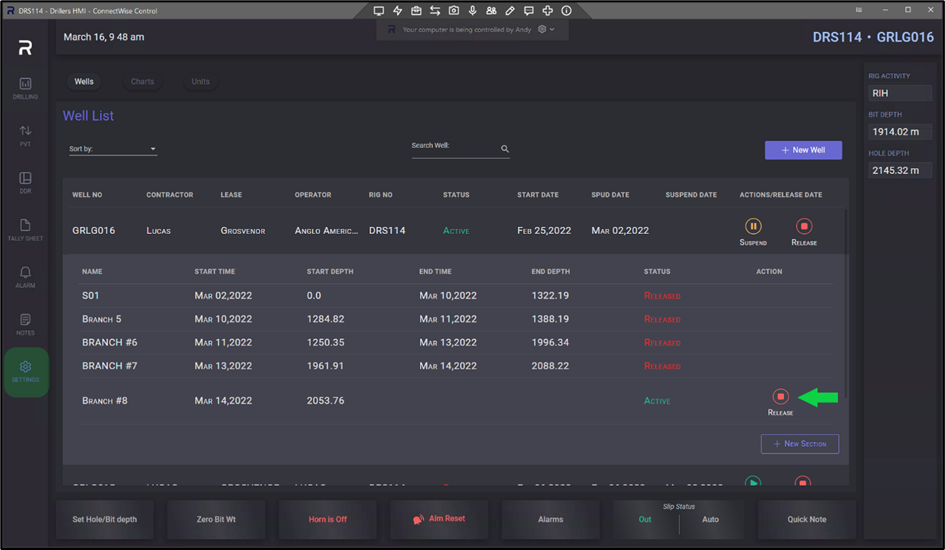
Click on the Settings Menu on the left-hand panel
-
Before starting a new section, you need to release the currently active section. Click on the red RELEASE button on the active section.
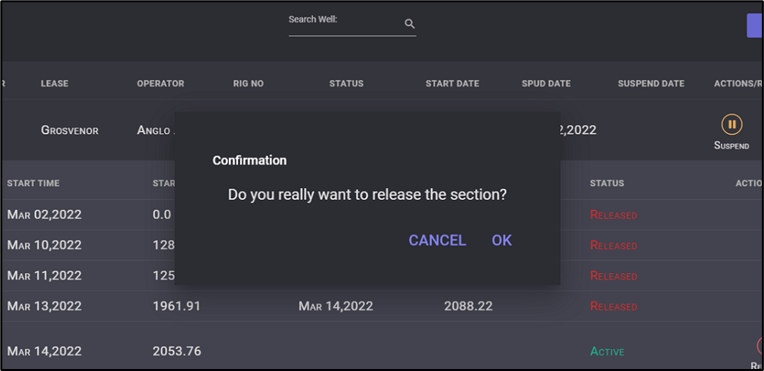
3. Click on OK button in the opened modal window to release the Well Section.
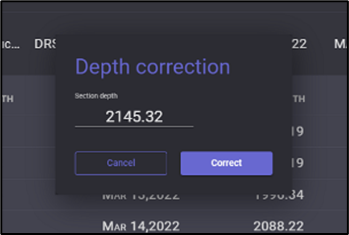
4. In the Depth Correction Pop-up window, enter any depth correction to the end of the current well section and click CORRECT to apply the depth shown in the menu as the well section finish depth.
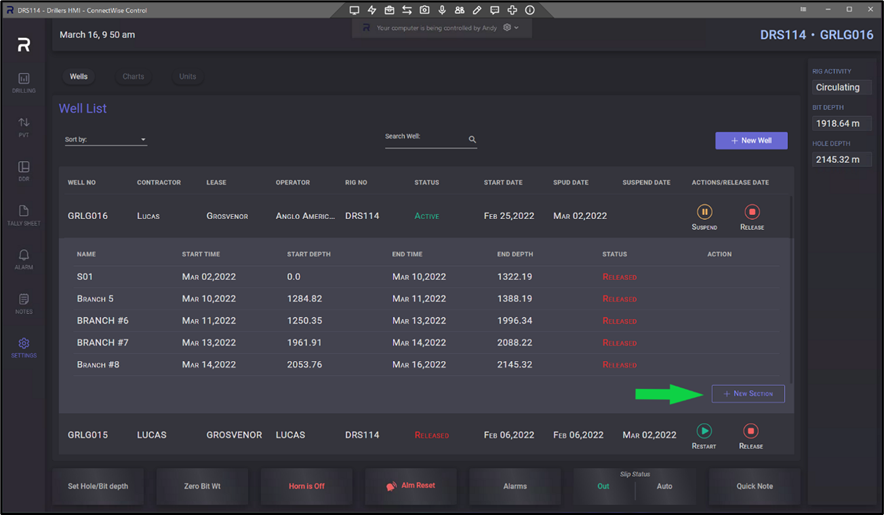
5. The current section is now released and will no longer have any data written against it.
6. To start a new section, click on the + NEW SECTION Icon on the bottom right-hand side of the window.
7. Click OK in the opened model window to start a new Section.
8. In the Start New Section Menu enter the following details:
a. Section Name: Enter the Section name for the new branch.
b. Select Parent Section: Enter the Parent section (branch) for the new branch.
WARNING! Ensure the correct Parent Section is chosen from the drop-down list. The parent section is the branch from where the new branch will be cut from. If you select the wrong Parent Section, please Contact Cyberloop (support@cyberloop.ai) to assist with correcting the error.
c. Select Start Depth: Enter the start depth of the new branch.
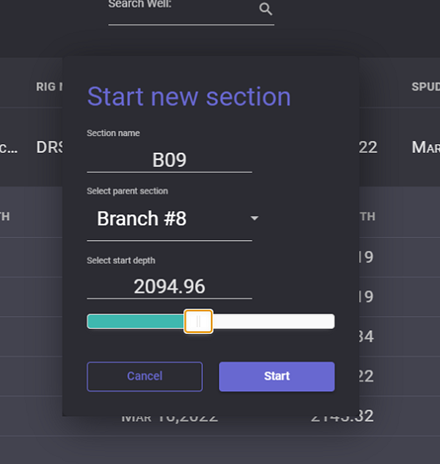
9. Select START to create the new branch.
10. The New Section will now be shown as Active in the Section list. All new data will be written into the New Section.