

Daily Drilling Report (DDR) combines the most common aspects of drilling operations and includes most of the data point an operator may track.
New Report
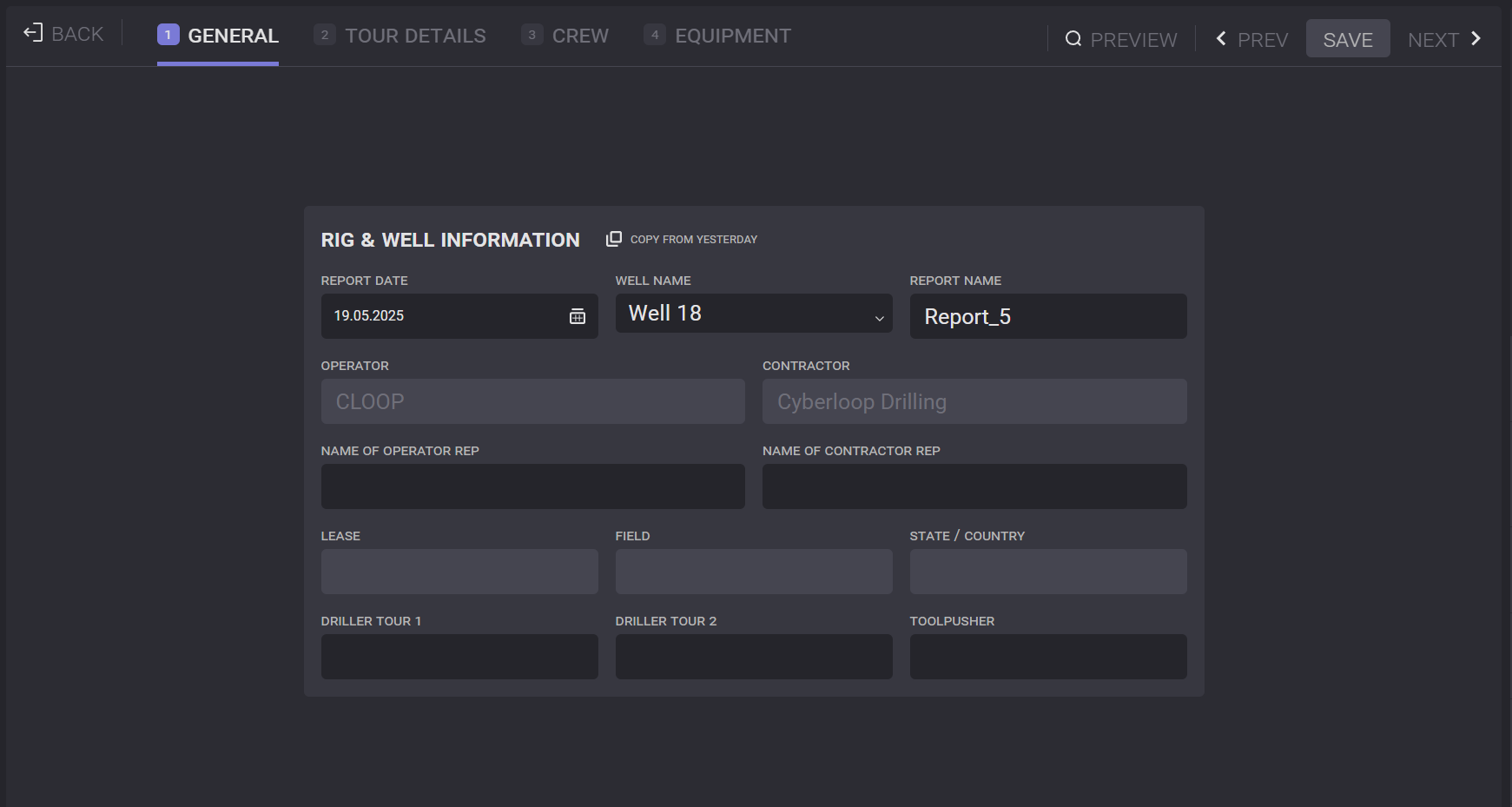
The Daily Drilling Report got created by clicking on the Add New button. On the first tab of the opened page, the General Information of the report should be provided: report date, well name, report name, name of operator rep, name of contractor rep, driller tour, and toolpusher.
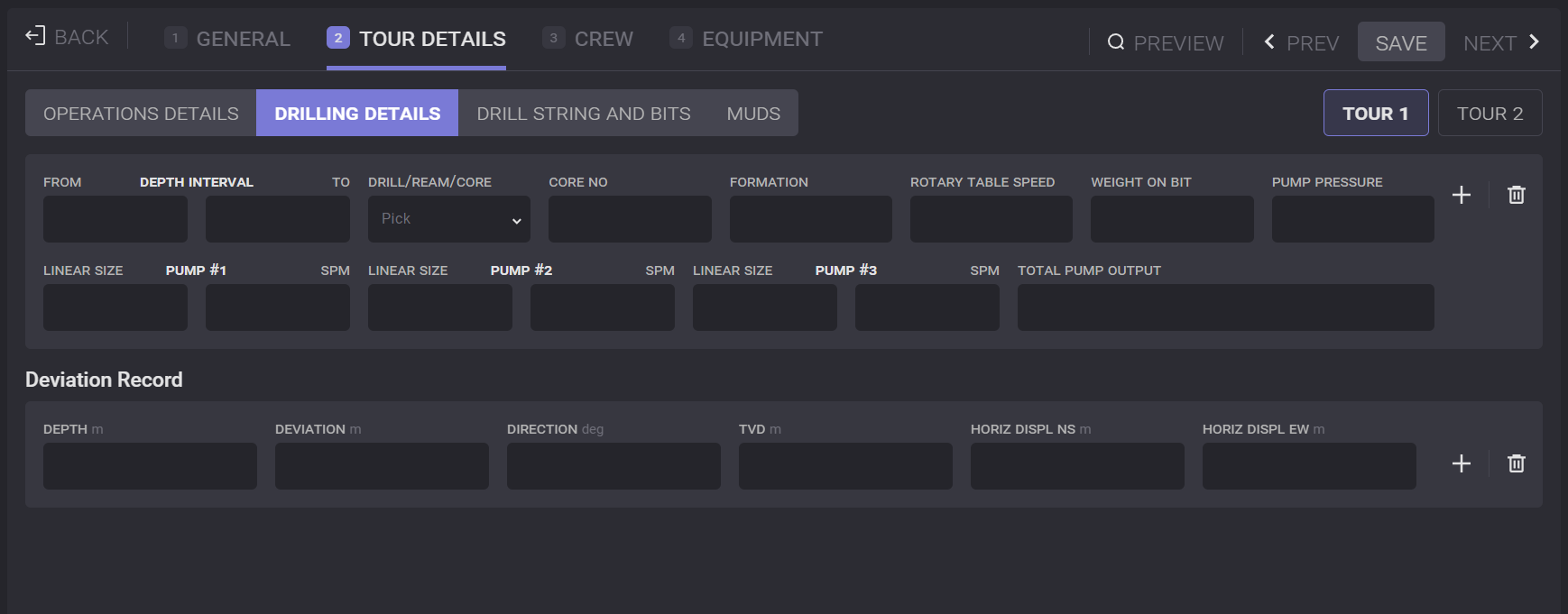
To move to the next page of filling out the report, click on the Next button in the top right corner or click on the next tab on the top panel. On the next page, Operations details, Drilling details, Drill String and Bits and Muds information should be filled in. At the top of the page specify the Shift forming report by selecting a corresponding radio button. The new shift can be added by clicking on Add Shift button. Created on this page shift can be edited in the DDR settings.
Tour details
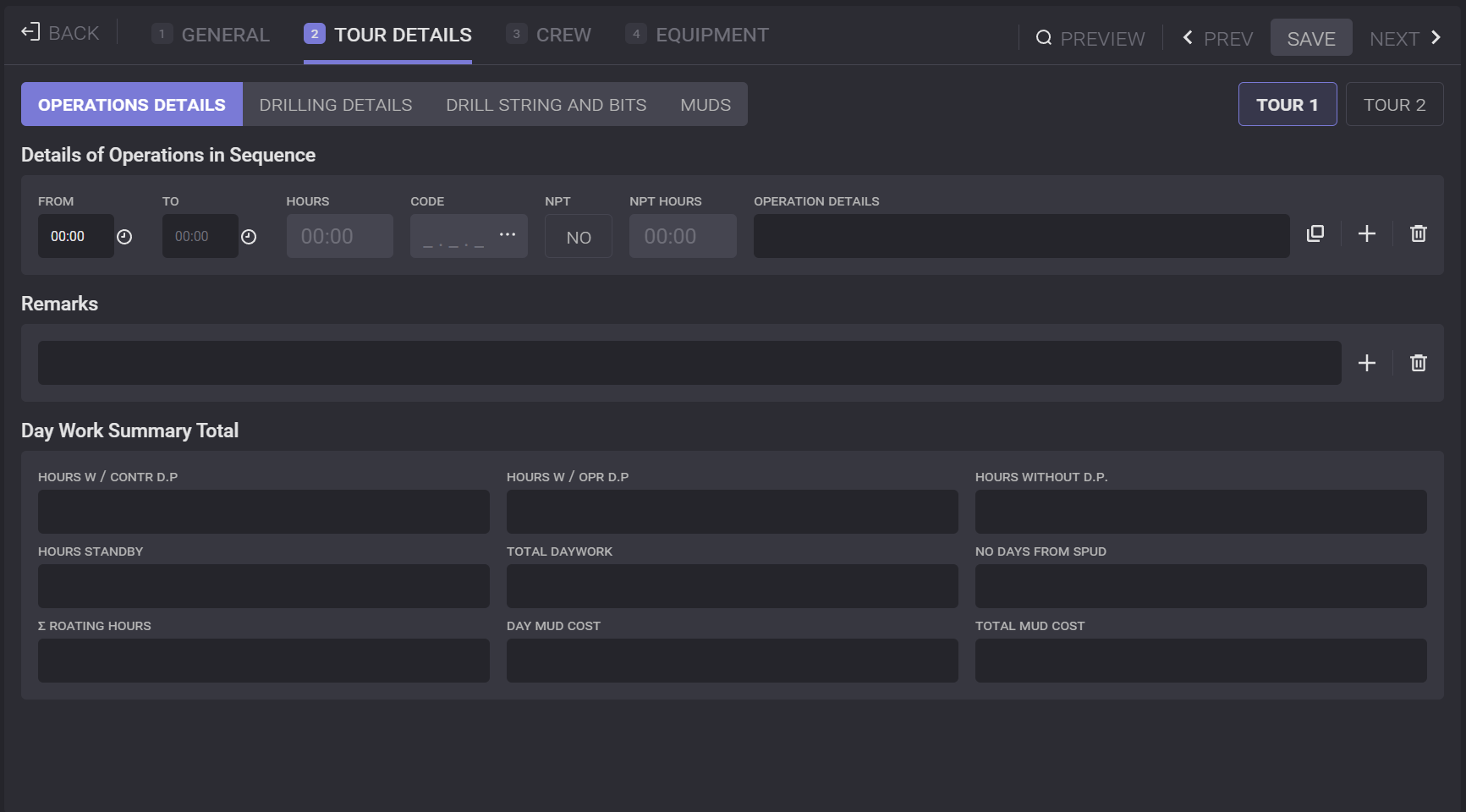
The Details of Operations block should contain the list of operations with time ranges. To enter the start and end time of operation click in the field and select the time on the appeared clocks. Total operation time will be calculated automatically. Operation code and the component that can be selected from the drop-down list are added in the Daily Drilling Report Settings. The Operation Details field can contain a brief description of the carried-out operation.
In the Day Work Summary block the working hours statistic and costs can be entered: Hours with contractor D.P., Hours with operator D.P., Hours without D.P., Hours Standby, Total daywork, No days from SPUD, Cumulative roating hours, Day mud cost, Total mud cost.
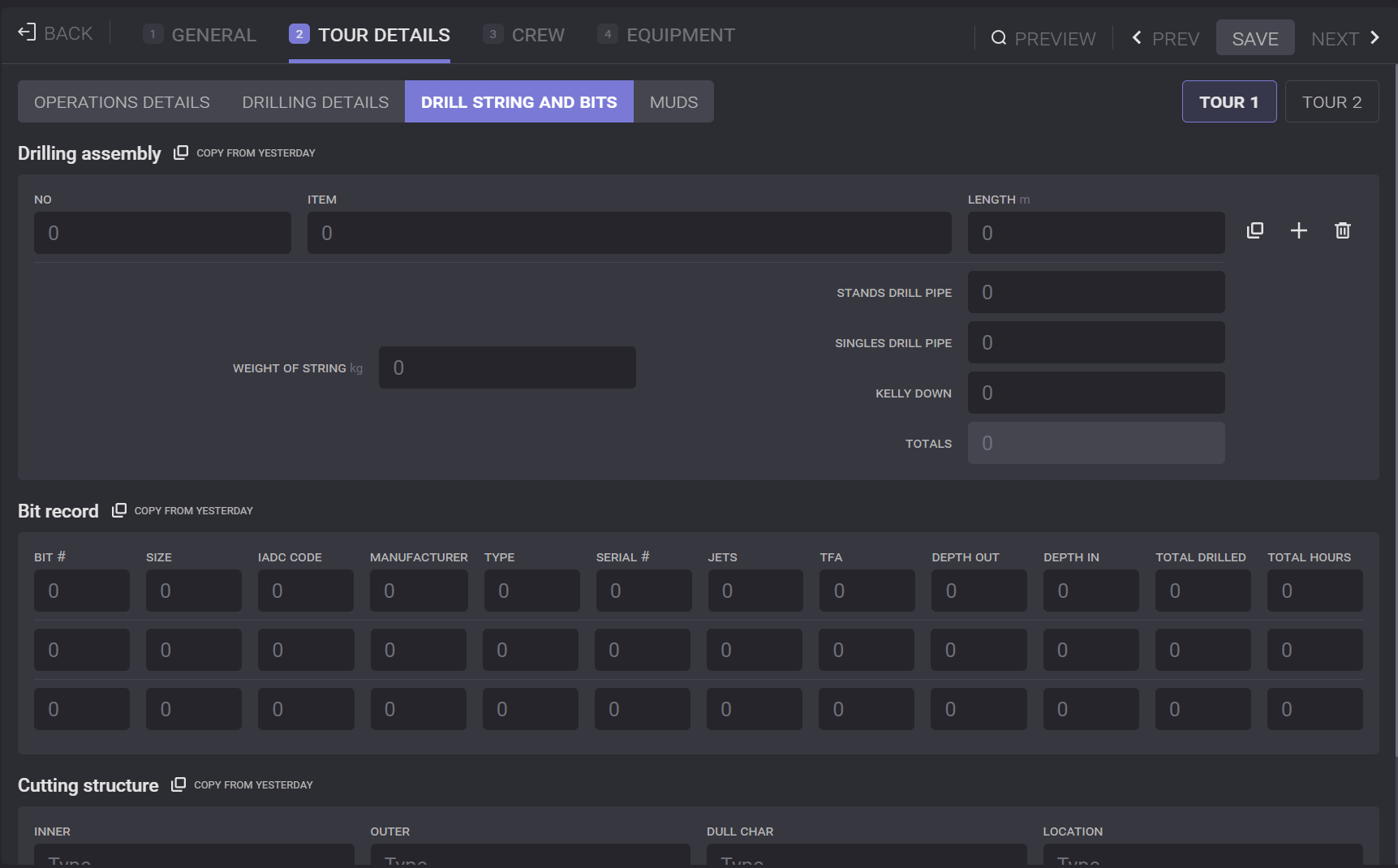
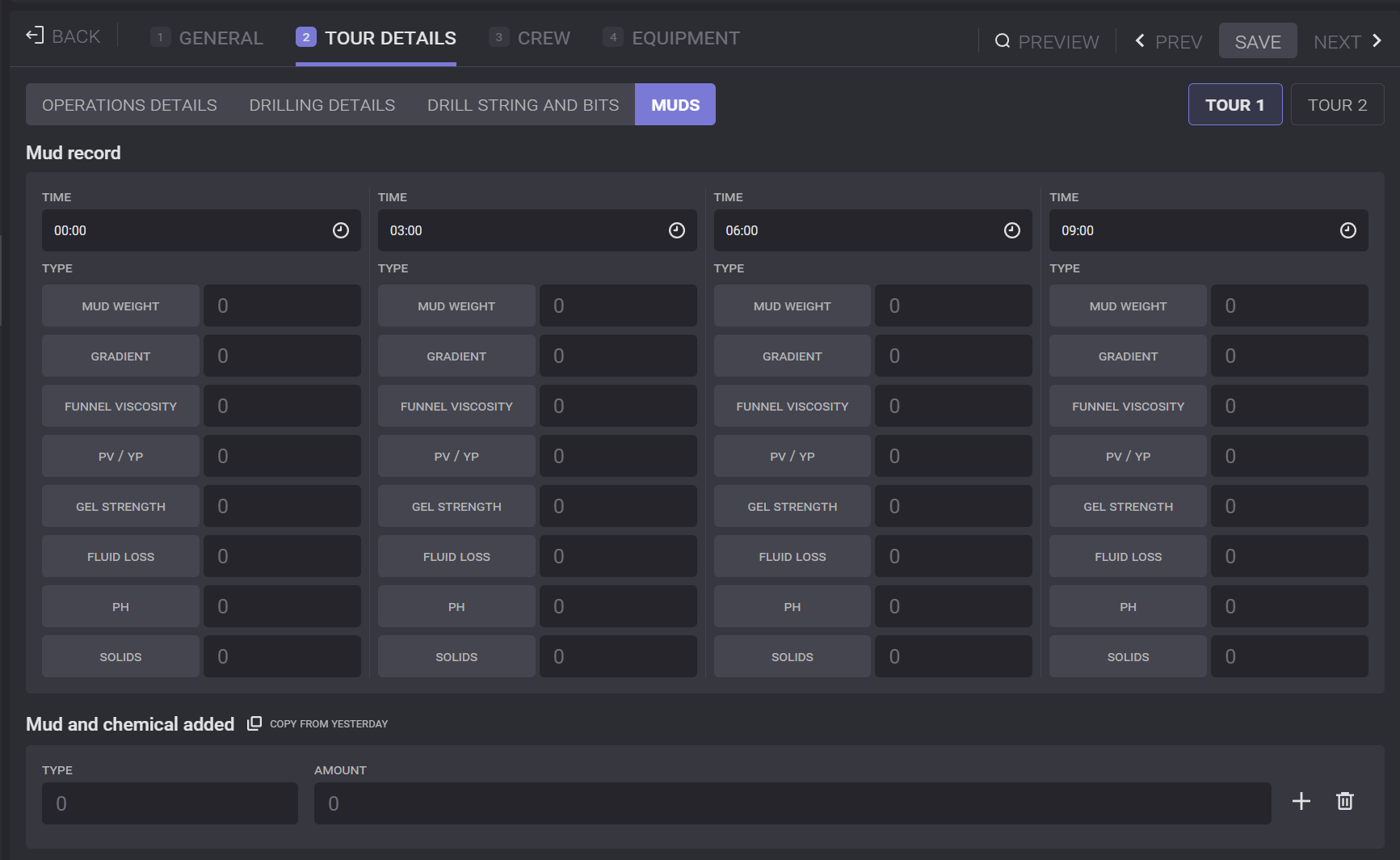
The Mud Record block described the physical and chemical characteristics of the mud: weight, press gradient, funnel vis, PV/VP, gel strength, fluid loss, PH, sand content.
In the Mud and Chemical Added block information on added drilling fluids and tank volumes can be added. The type and amount of mud and chemicals should be specified in this block. To add another row for added mud or chemical or tank, click on the “+“ button. To remove the row from the list, click on the Delete button. Information can be copied from the report that was created on the previous day. To do so, click on the Copy from Yesterday button above the block.
Crew
In the Personnel Information block crew information should be added. From the drop-down list select the Crew that will be added to the report. When the crew is selected, the list of assigned employees will appear in the block. Other personnel can be added to the report list by clicking on the Add Other Personnel button. In the opened modal window fill in the employee information and click on the Add Member button, and the person will appear in the list.
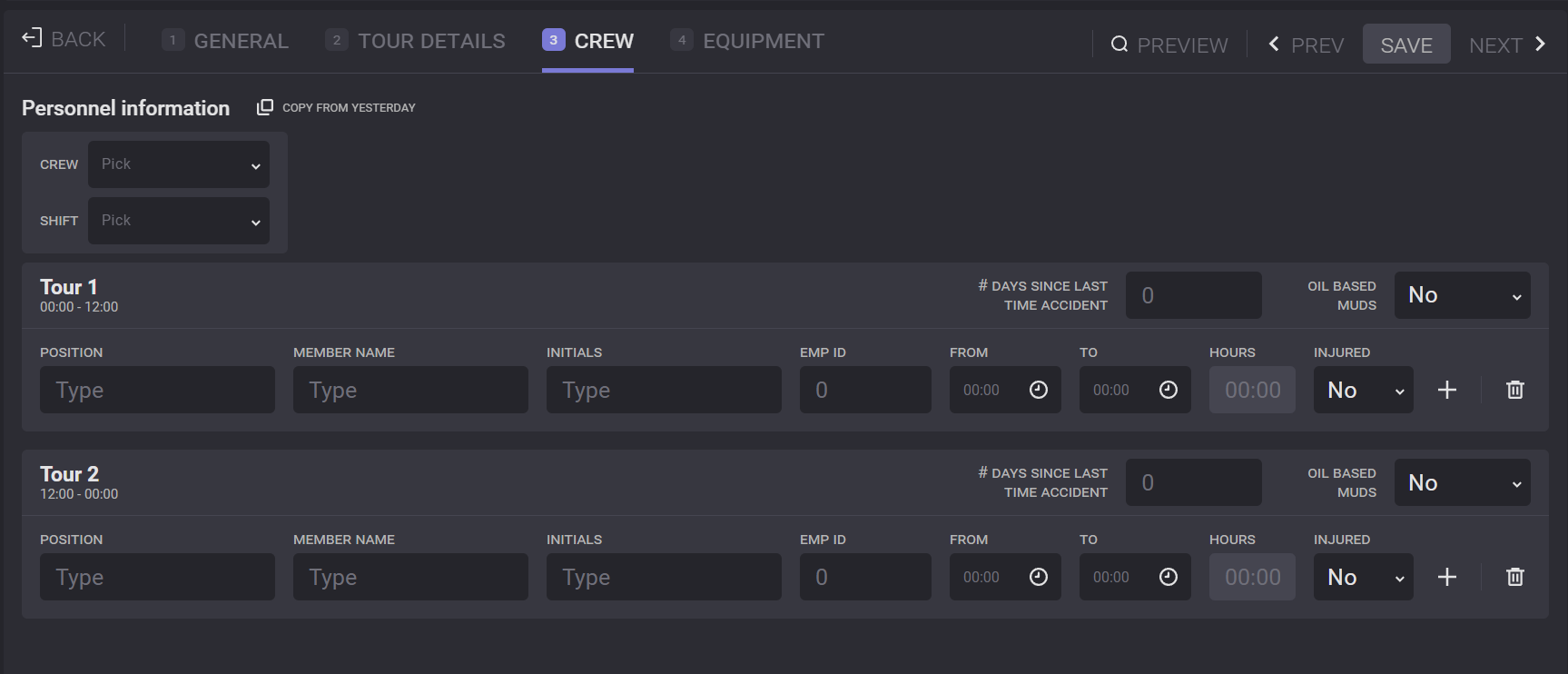
Personnel Information can be copied from the report that was created on the previous day. To do so click on the Copy from Yesterday button above the Personnel Information block.
Equipment
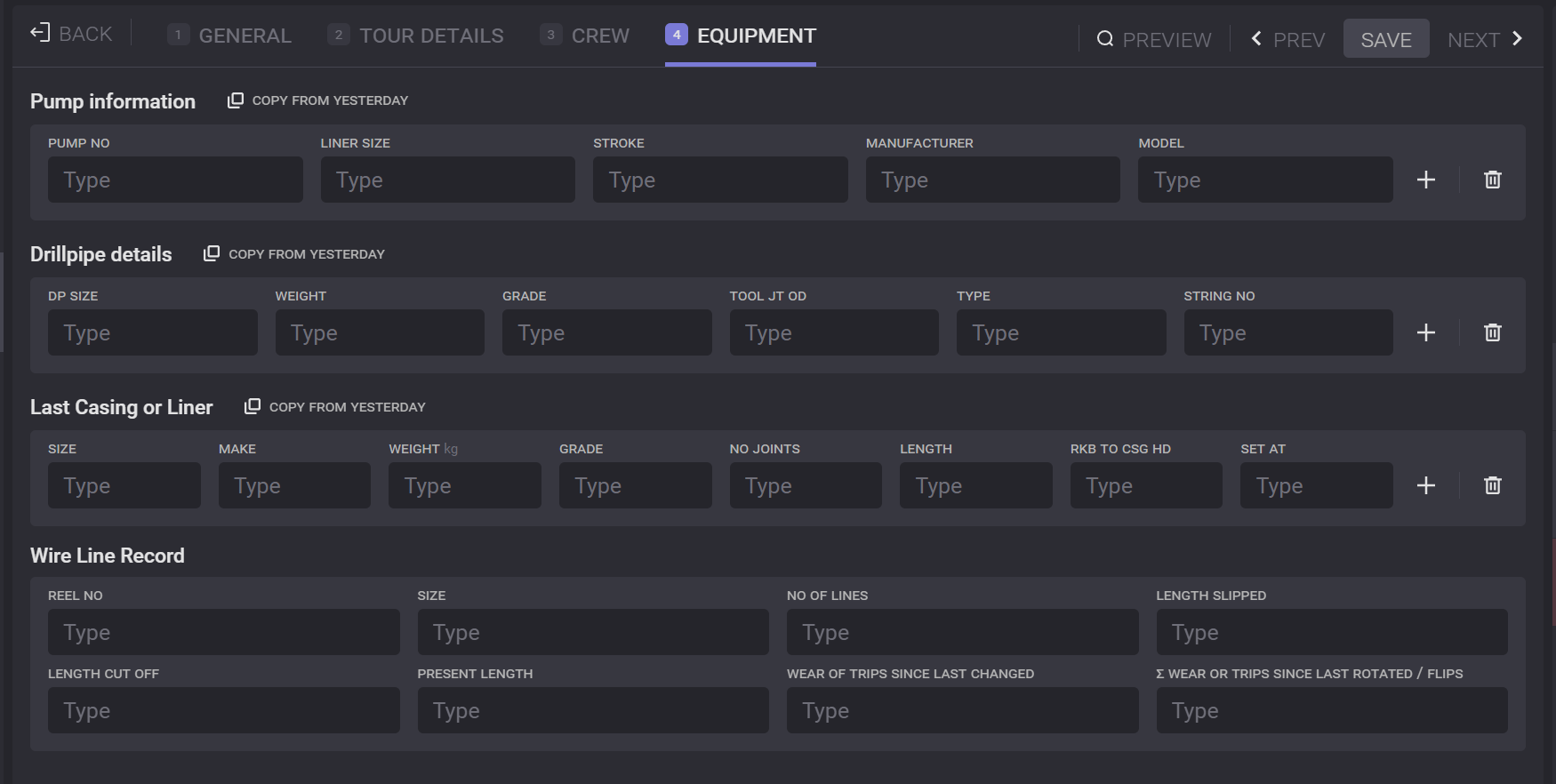
The Pumps block contains pump number, liner size, and stroke information. To add a row for another pump click on the “+“ button. To remove the row from the list click on the Delete button. Information can be copied from the report that was created on the previous day. To do so, click on the Copy from Yesterday button above the block.
To the Drillpipe details block, drillpipe information (size, weight, grade, type). To add a row for another pipe, click on the “+“ button. To remove the row from the list, click on the Delete button. Information on drillpipes can be copied from the report that was created on the previous day. To do so, click on the Copy from Yesterday button above the block.
To the Last Casing or Linear block can be added basic information on tubular and the accessories that are used to run the drill bit. To add a row for another pump click on the “+“ button. To remove the row from the list, click on the Delete button. Information on drillstring component can be copied from the report that was created on the previous day. To do so, click on the Copy from Yesterday button above the block.
Working with report
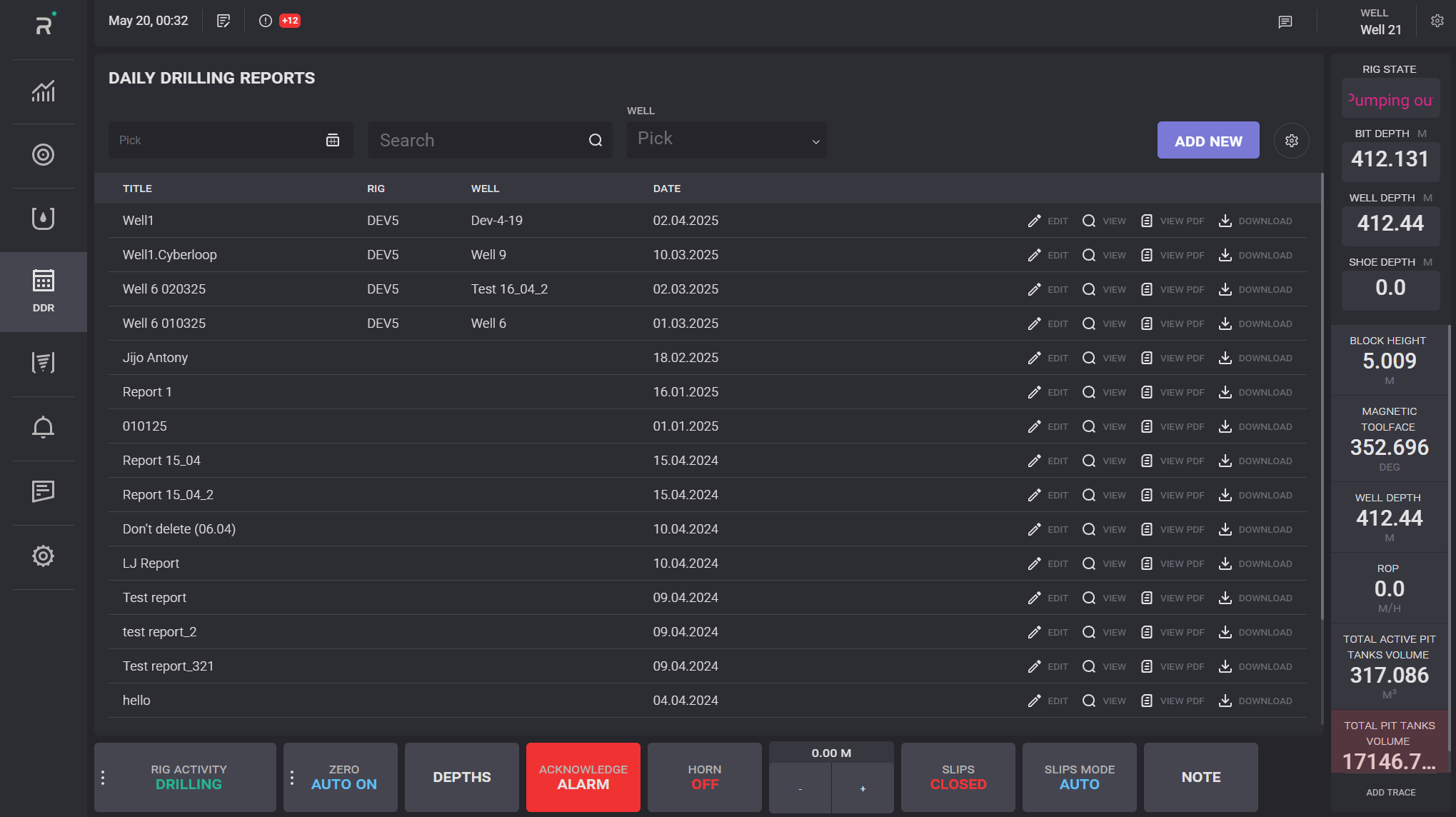
The intermediate version of the report can be saved by clicking the Save button. The draft version of the report will be created and saved in the DDR list. To sort the reports list by dates specify the date range in the corresponding field or select the range on the drop-down calendar. Reports can be searched by title.
The draft reports can be edited and deleted. To edit the report, click on the Edit button next to it in the list or turn on the Edit switch when viewing the report.
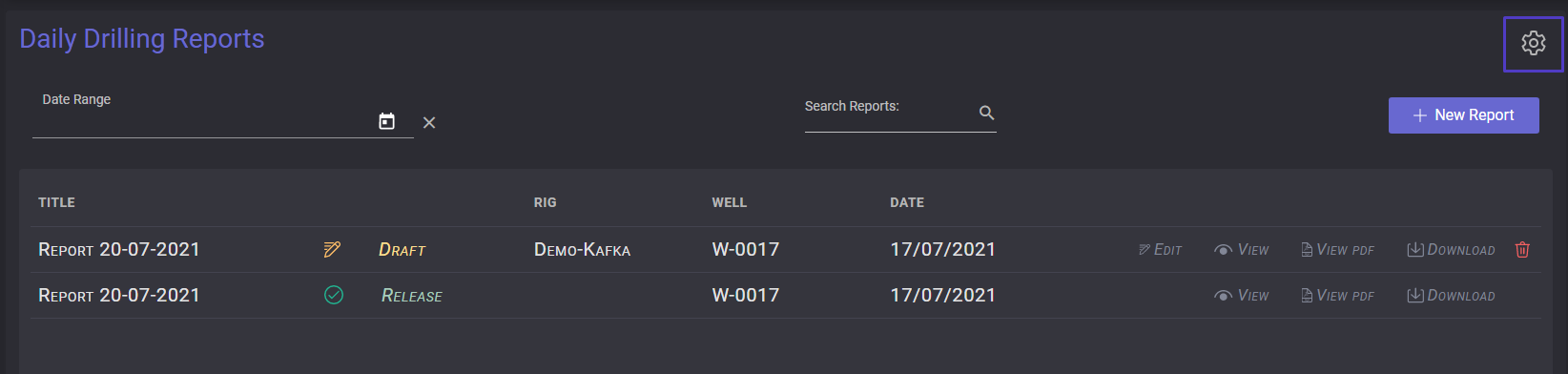
When the report is ready, click on the Release button to publish. The status of the report in the list changed to released.
The released report cannot be edited or deleted